You land, open a map and want to message your hotel. A travel eSIM can provide the data connection while your usual number stays on a separate line. The important decision is not simply whether roaming is on: it is which SIM provides data, which line stays active, and what your home operator charges. Set those roles before the first mobile-data session.
The two-line setup at a glance
| Setting | Home SIM | Travel eSIM |
|---|---|---|
| Mobile data | Do not select it for travel data | Select this line |
| Data roaming | Off, unless you deliberately use your home roaming plan | Follow the exact package instructions |
| Calls and ordinary SMS | Your number and operator's roaming conditions | Do not assume a data-only plan includes them |
| Automatic data switching | Disable fallback to this line where the phone allows it | Keep the selected travel-data line |
Before departure: three checks that matter
- Check the exact phone. Confirm eSIM support, carrier-unlock status and the number of lines it can keep active. Model names alone are insufficient: region, firmware and carrier can change support. A work phone may have additional restrictions.
- Read the activation rule before installing. Downloading a profile, enabling a line and starting paid validity are different steps. Some packages start at installation; others at first use of a supported network. Check the installation deadline and whether a transit country is covered before enabling the profile there.
- Prepare an offline fallback. Save the hotel's address, booking reference and installation instructions in a secure place you can open without mobile data. Keep activation details private. If the package permits advance installation, use a reliable internet connection before departure.
Choose whether to keep your home line on
If you do not need calls or SMS to your home number, turning that line off in phone settings is the simplest way to keep it out of normal roaming use. If you need bank codes or incoming calls, you may keep it active, but check the operator's conditions first. Turning off data roaming does not disable voice calls, outgoing SMS, voicemail or every possible roaming charge. Ask your operator about those services and Wi-Fi calling. Do not treat keeping your number available as a promise of free service.
Where to find the settings
- iPhone: Settings → Cellular/Mobile Data → choose the travel line for data. Review Allow Cellular Data Switching and turn it off if you want to prevent automatic use of the other line. Open each line separately to check its roaming setting.
- Samsung Galaxy: Settings → Connections → SIM manager. Review the preferred SIM for mobile data and Auto data switching. Check the roaming setting in Mobile networks; do not assume it applies independently to each line on every model.
- Google Pixel: Settings → Network & internet → SIMs. Choose the travel SIM for data and review automatic data switching and data during calls, where available.
Menu names and available switches vary by software, carrier and phone. Use the manufacturer's instructions linked below. Even if your phone offers an automatic travel setup, confirm the selected data line yourself.
What happens to bank SMS and messaging apps?
An ordinary bank SMS is sent to the phone number registered with the bank; buying a data-only eSIM does not move that number. Reception depends on your home line, roaming support and the bank's delivery process, and is not guaranteed. Before leaving, check whether your bank offers an in-app confirmation method. Existing internet messaging accounts can use the travel data connection; changing the data SIM does not require registering a new account. Avoid changing numbers or reinstalling an app just for the trip, because a new login may require verification.
After landing: a short connection check
- Turn off airplane mode when permitted and enable the installed travel line.
- Select that line for mobile data. Recheck that automatic fallback will not use your home SIM.
- Apply the package's data-roaming instruction to the travel connection; keep the home line's data roaming off unless intentionally using it.
- Allow the phone to register on a supported network. With Wi-Fi temporarily off, open a small web page and send a message to confirm mobile data works.
- Check remaining data in the service where you bought the package. Schedule large backups and updates for Wi-Fi so the first connection does not consume your travel allowance.
If there is still no internet
- No service: check that the current country is covered, the line is enabled and the package is within its validity period. Restart the phone or briefly toggle airplane mode when permitted.
- Signal but no internet: check the selected data SIM, remaining allowance and required roaming setting. Enter an APN only if the package instructions specify one; do not copy settings from an unrelated provider.
- Still stuck: use Wi-Fi to contact support with the order reference, phone model, current country and error text. Do not post your QR code or activation credentials publicly. Do not delete the eSIM unless your provider asks you to; reinstallation may require help.
When you get home
Back home, select your home line for mobile data and check call/SMS preferences. Disable the travel line if it is no longer needed. Review the home operator's usage record and the travel package balance. Turning a line off is different from deleting its profile or cancelling a paid subscription; check any renewal terms separately.
Choose a plan and keep the installation details
Compare coverage, validity, activation rules, total data and any daily high-speed limit before paying. If you are unsure of the allowance, use our travel data budget guide; for installation, follow the package instructions alongside our setup guide.
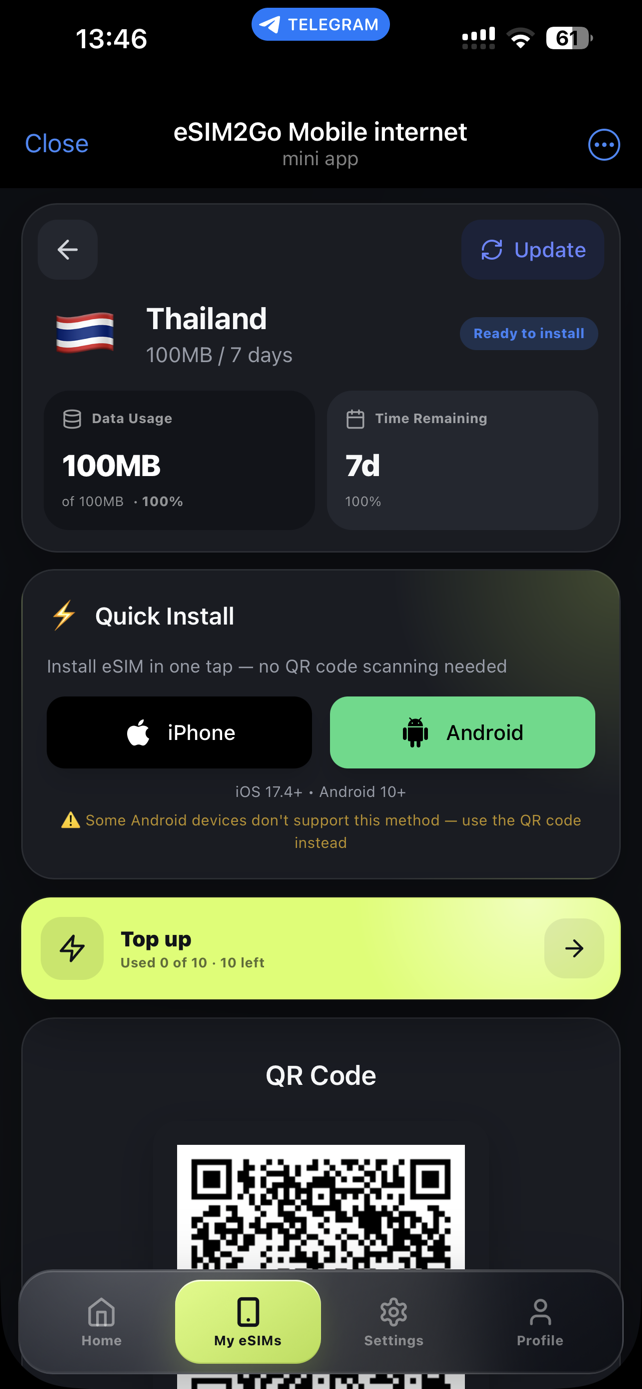
With eSIM2Go, a website purchase gives you the eSIM installation details on the website after payment confirmation. A purchase in the Telegram Mini App delivers them in “My eSIMs” inside eSIM2Go. Save access to the channel you used before travelling; do not assume an order automatically appears in both places.
Frequently asked questions
Should roaming be on or off for a travel eSIM?
Follow the selected package's instructions. Many travel connections need roaming enabled. That does not mean you should also enable data roaming on your home line.
Can I keep my home number while using an eSIM abroad?
On a compatible phone, you can keep the home line and use a second line for data. Keeping the number does not make home-operator roaming services free. Decide whether the home line needs to stay enabled.
Will a data-only eSIM receive my bank's SMS codes?
No: it does not take over your existing phone number. Check access to the registered number or an alternative verification method before departure.
Should I delete the eSIM if it does not connect?
Do not start by deleting it. Check coverage, validity and line settings, then contact the provider. Ask whether the profile can be reinstalled before removing it.
Sources and review
Reviewed on 27 September 2026. This is a practical setup checklist, not a promise of zero operator charges. Official device instructions: