Activating an eSIM is quick and easy once you know the steps. This guide will walk you through the process for iPhone, Samsung, Google Pixel, and other eSIM-compatible devices. The whole process takes just a few minutes. Note: Exact steps may vary slightly depending on your device model and software version.
Before You Start
Make sure you have the following ready:
- An eSIM-compatible phone (see list below)
- Stable Wi-Fi connection
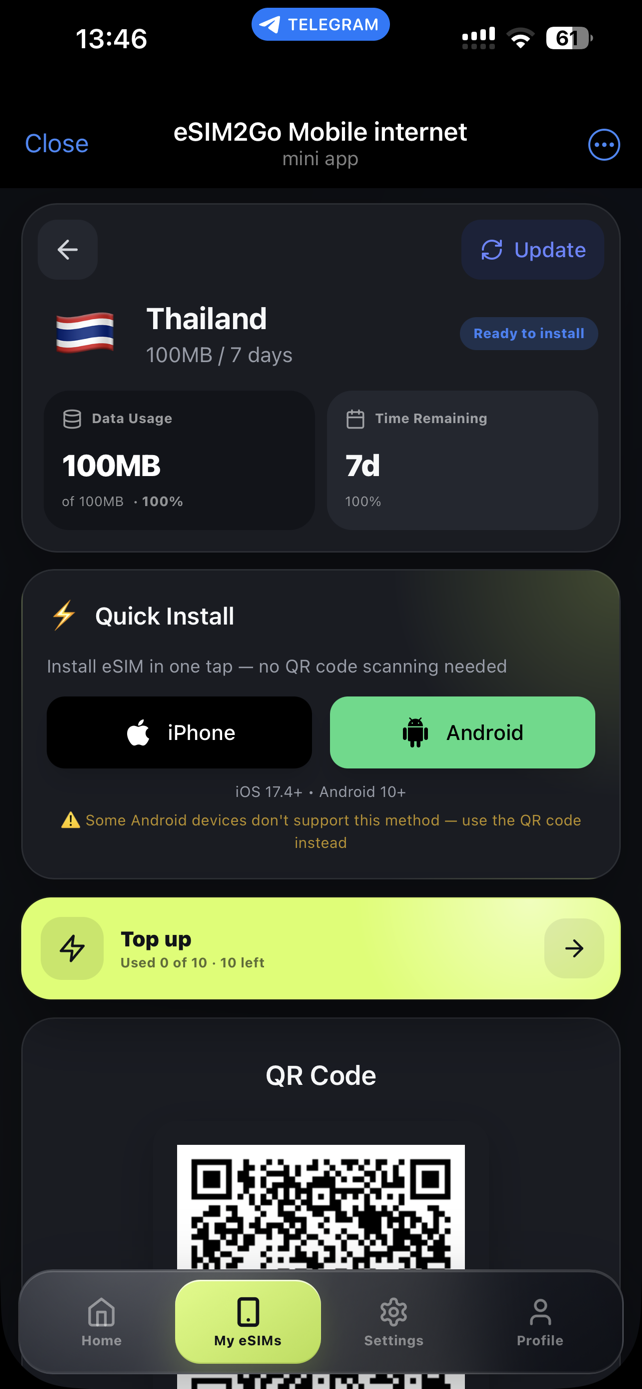
- Your eSIM QR code — get it from our Telegram bot
- About 5 minutes of time
Compatible Devices
eSIM is supported on:
- iPhone: XS and newer, including latest models (all variants)
- Samsung: Galaxy S20 and newer, Z Fold/Flip series
- Google Pixel: 4 and newer (all variants)
- Other: Motorola Razr, Huawei P40 (selected regions), Oppo Find X3+
How to Activate eSIM on iPhone
- Open Settings on your iPhone
- Tap Cellular (or Mobile Data)
- Tap Add eSIM or Add Cellular Plan
- Choose Use QR Code
- Scan the QR code from eSIM2Go
- Wait for the plan to download (takes 1-2 minutes)
- Tap Done when prompted
- Choose a label for your new line (e.g., "Travel")
- Set your new eSIM as the default for Data
How to Activate eSIM on Samsung
- Open Settings
- Tap Connections
- Tap SIM card manager or SIM manager
- Tap Add eSIM
- Select Scan QR code from service provider
- Scan your eSIM2Go QR code
- Wait for activation to complete
- Enable the eSIM and set it for mobile data
How to Activate eSIM on Google Pixel
- Open Settings
- Tap Network & internet
- Tap SIMs or Mobile network
- Tap the + button to add a SIM
- Select Download a SIM instead
- Tap Next and scan your QR code
- Confirm and wait for download
- Set the new eSIM for data usage
When to Activate Your eSIM
Best practice: Install the eSIM profile before your trip (while on Wi-Fi), but only turn on data when you arrive at your destination. This way:
- You're ready to connect the moment you land
- Your data validity period starts when you first use data
- No stress trying to set up at a busy airport
Troubleshooting Common Issues
- QR code won't scan: Make sure you have good lighting and hold your phone steady. Try increasing screen brightness on the device showing the QR code.
- Download fails: Check your Wi-Fi connection. Restart your phone and try again.
- No signal after activation: Make sure eSIM is enabled in settings and set as the data line. Restart your phone.
- eSIM not showing: Some carrier-locked phones may have eSIM disabled. Contact your carrier to unlock it.
Frequently Asked Questions
Can I install eSIM without Wi-Fi?
You need an internet connection to download the eSIM profile. Wi-Fi is recommended, but mobile data from your primary SIM also works.
How many eSIMs can I store on my phone?
Most phones can store 8-10 eSIM profiles, but only one eSIM can be active at a time (along with your physical SIM).
Can I delete and reinstall my eSIM?
eSIM profiles are typically single-use. Once deleted, you'll need to purchase a new one. Keep it installed if you plan to return to that country.
Will my phone number change with eSIM?
eSIM2Go plans are data-only, so you keep your original phone number. Your home SIM stays active for calls and texts.